Snapshots
Snapshots are the heart of DeepSnap: a library of frozen Unity state you can return to whenever the live Editor has moved on.
The problem Snapshots solve
Unity state is temporary by nature. Leave Play Mode and values reset. Reload a scene and setup disappears. Refactor a Prefab and the "working" version exists only in someone's memory.
Snapshots give you a durable answer. Capture the object that matters, store it as a .deepsnap file, and keep moving. When questions come later, you open the file instead of reconstructing history.
An Explorer-like library for captures
The Snapshots workspace feels like a small project browser inside Unity:
- Folders to group captures by feature, bug, or milestone
- Favorites for the places you visit every day
- A clear list of names, targets, backends, sizes, and dates
- Search highlighting so the right file shows up fast
Treat it like evidence storage, not a temporary dump. Name captures for the story they tell: PlayerHealth_before_refactor, LootTable_v3_balanced, DialogRoot_playmode_ok.
Capture in the moment that counts
Create a snapshot when the state is worth keeping:
- From the current Hierarchy, Project, or Inspector selection
- By dragging a supported object onto the DeepSnap window
- Into the folder you are already browsing
Supported targets typically include GameObjects, Prefabs, Components, and ScriptableObjects. If a drop is not supported, DeepSnap tells you clearly instead of writing a useless file.
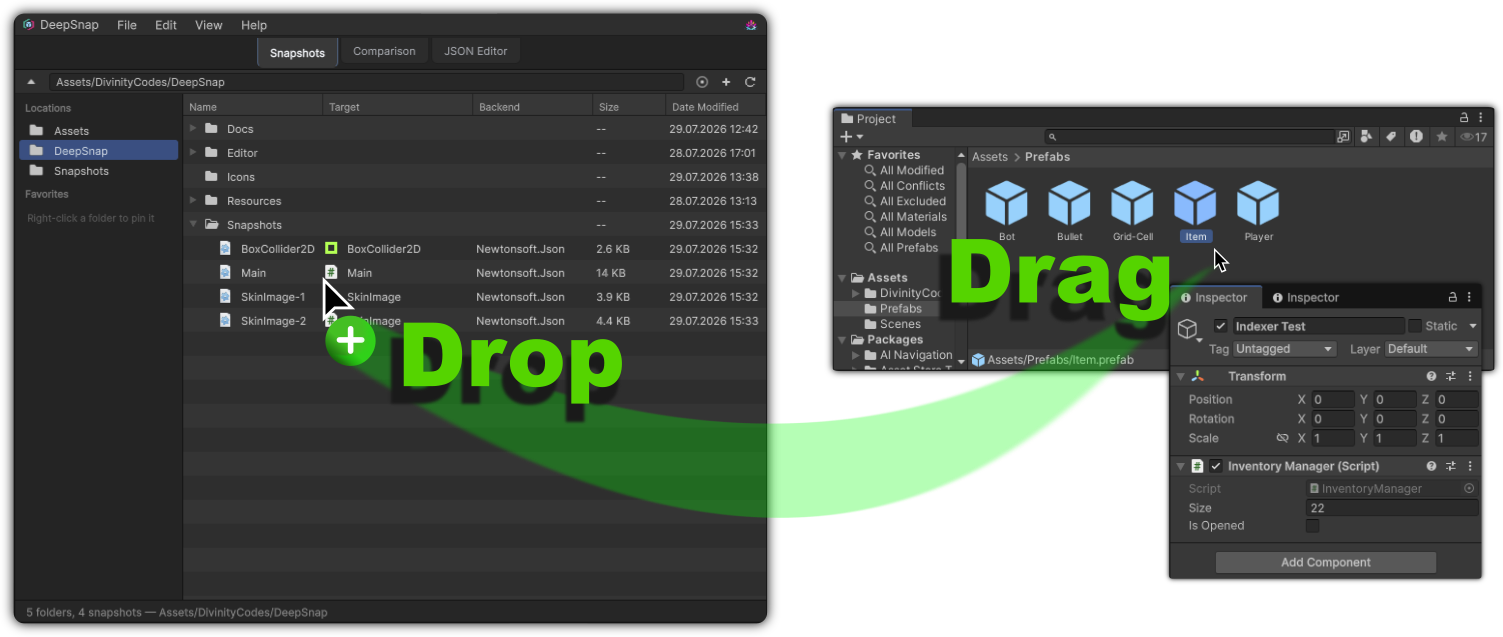
Drag from the Project window, Hierarchy, or Inspector onto DeepSnap to start a new snapshot.
Choose how deep the freeze goes
Not every capture needs the entire reflection graph. DeepSnap lets you decide how much truth to lock down:
| Mode | When to use it |
|---|---|
| Serialized only | Best default. Closest to what the Inspector cares about, and the most stable for diffs. |
| Serialized + public reflection | When public surface area matters beyond serialized fields. |
| Maximum reflection | When you need the deepest graph, and you accept larger, noisier files. |
Pair that with backend options such as indented JSON, type names, reference preservation, and null inclusion. Start conservative. Go deeper only when a bug hunt demands it.
Backends that fit your project
| Backend | Role |
|---|---|
| Newtonsoft.Json | Recommended for most projects. Readable JSON text you can inspect and share. |
| FullSerializer | Useful when you want its Unity-oriented serialization behavior. |
Changing the default backend affects new captures. Existing files stay readable. If comparison is part of your workflow, keep the backend consistent across related snapshots.
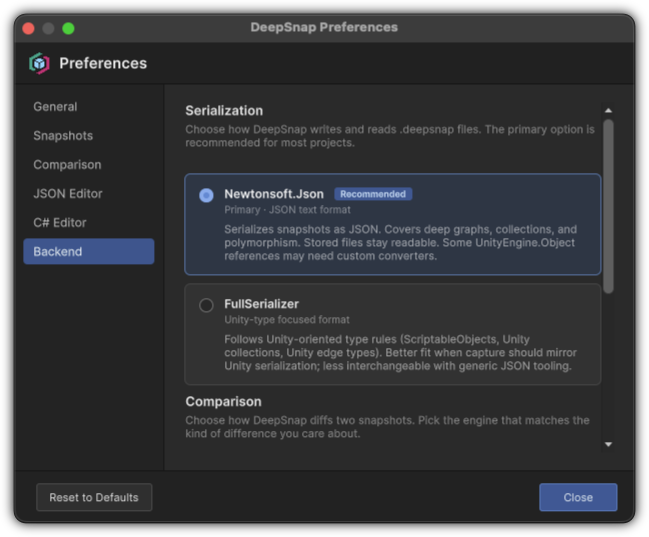
Choose the default snapshot backend in Preferences when you want Newtonsoft.Json or FullSerializer for new captures.
Organize so future-you can find it
- Create folders for systems, tickets, or release checkpoints
- Pin key folders to Favorites
- Rename and delete from the context menu when a capture is no longer useful
- Reveal files on disk when you need to attach them outside Unity
- Export or copy JSON when someone outside DeepSnap needs the payload
What comes after a capture
A snapshot is useful the moment it exists. It becomes powerful when you:
- Open it in Examine to read the frozen graph
- Diff it in Comparison against a later capture
- Export evidence for a bug report or design review
- Read what the
.deepsnapenvelope stores in File formats
If you are just getting oriented, start with Getting started, then come back here whenever capture habits need sharpening.